The Shortcuts app (on iPhone, iPad, and Mac) might be one of the most powerful apps that most users never touch.
Shortcuts allows users to either automate or streamline quite a few actions in iOS, iPadOS, and MacOS, as well as 3rd-party apps that support Shortcut actions.
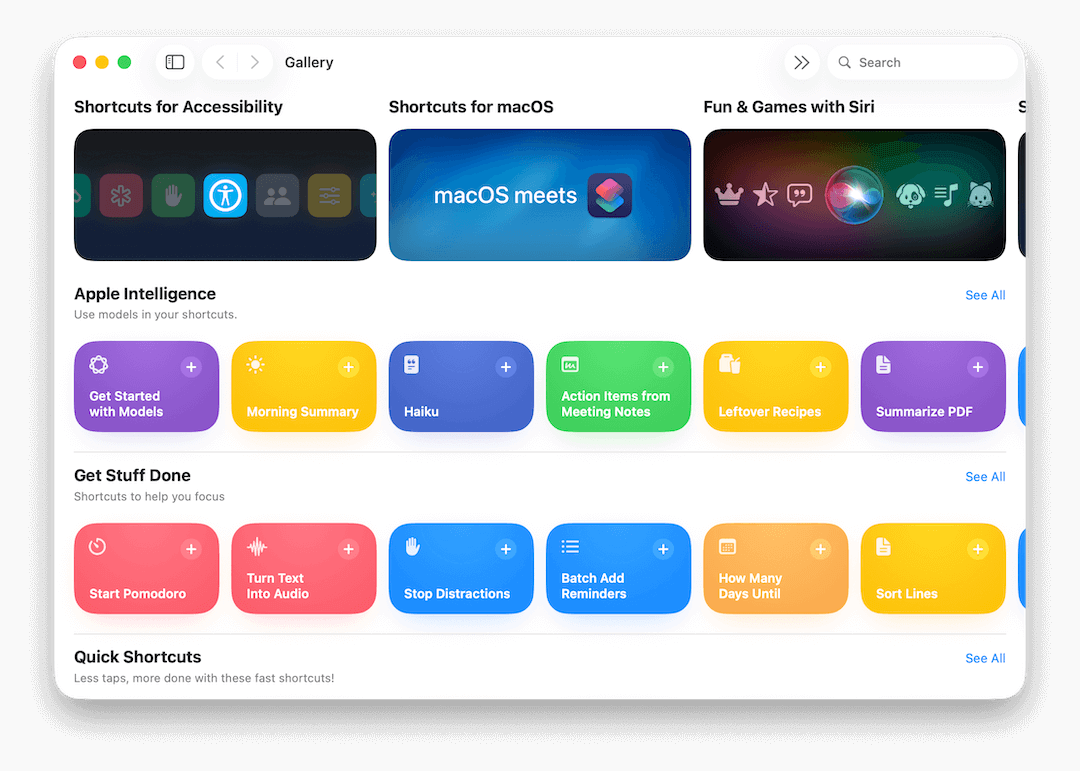
To get a feel for what actions the Shortcuts app can do, open up the Shortcut app on any device, and navigate to the Gallery. Here you can find dozens of pre-made shortcuts that may be of use to you. Some of the most useful ones that I’ve found in the Gallery include:
- A one-click Pomodoro timer (that also turns on a Focus Mode).
- Adding multiple items to Reminders by just typing text into a single text box.
- Add an item to Reminders that will alert you when you arrive at a specific place (like home or work).
- Get travel time to your next appointment (and optionally open Maps to navigate there).
- See the number of days until a specific event.
- Create a PDF from almost any input (even a website).
- Track time spent on an activity and record it in a Note.
In addition to downloading Shortcuts from the Gallery, you can also modify downloaded Shortcuts and make your own.
Shortcuts can also be hooked into Automations, so that you can run specific Shortcuts at specific times or when certain conditions are met. It’s this capability to automatically track time that I have found very useful recently.
Time Tracking Basics
The Time Tracking Shortcut is pretty basic – while you can set up as many different activities as you want, you have to manually enter the time that you start them and the duration. The Shortcut then adds that to a Notes app, so that you have a running list of what you’ve spent your time on.
If you want a more visual way to see your data, instead of adding that information to a specific Note, you could create a calendar event on a calendar of your choice.
I made this Shortcut to add events to a calendar of your choice. You can download it here and set it up to add your own activities and your preferred calendar. Time Tracking to Calendar Shortcut.
This Shortcut is best used after an event, though, since you’ll need to know when it both starts and stops.
Time Tracking with 3rd Party Apps
If you want to take time tracking a step further, there are a couple of steps you can take.
This first (and the one that will likely cost at least some money) is to use a Shortcut to start time tracking using a 3rd-party app. Some good options include Toggl, Timery, Tyme, and numerous others. While this may not be necessary for everyone, as a freelancer, keeping track of how I spend my time is important, so this is worth the expense for me.
Since there are quite a few different options for time tracking apps you could use, it isn’t really practical for me to create sample Shortcuts for each app. Instead, here’s the basic flow you’d want to follow:
- Create a list which displays the various activities you want to track.
- After selecting an item, start a timer using the selected activity as the title.
- When you’re done with the activity, you can open up your time tracking app to stop the tracking. It may also be possible to create another Shortcut which stops your active timer, so you don’t have to open up the time tracking app.
Time Tracking with Focus Modes
For some events, though, you may want to limit various notifications, change your home screen, block certain contacts, or perform other actions that you can do using Focus Modes.
You can do this by creating an Automation (also in the Shortcuts app) that will trigger when you enter a specific Focus Mode. You can do this essentially the same way that you made the manual time tracking Shortcut above. You will usually want two Focus Mode automations – one for turning the time tracking on when you enter a Focus Mode, and another for turning the time tracking off when you exit that same Focus Mode.
One advantage to this technique is that if you have your Focus Mode change your background or home screen, that can be a visual reminder that you have a specific timer running for a specific event. This can both help you stay on task, but it can also remind you to exit that Focus Mode (and stop the timer) to keep your records accurate.
Even More Shorcut Possibilities
While Shortcuts is not perfect (there are still some discrepencies between actions available on various platforms, for example) I think it one of the “hidden gems” in Apple’s three primary operating systems today.
In addition to time tracking, I use Shortcuts to create a list of my teaching for the past month, to aid in billing and invoicing. I use it for quick entry in several different apps, to avoid having to click or tap around to quickly add some information in a particular place. I use it to streamline entering food/drink information in my calorie/macro tracking app. I use it to set up specific split window views on my iPad for various activities.
If you’ve found any interesting uses, or have any questions about Shortcuts, don’t hesistate to reach out!

Leave a Reply
You must be logged in to post a comment.